


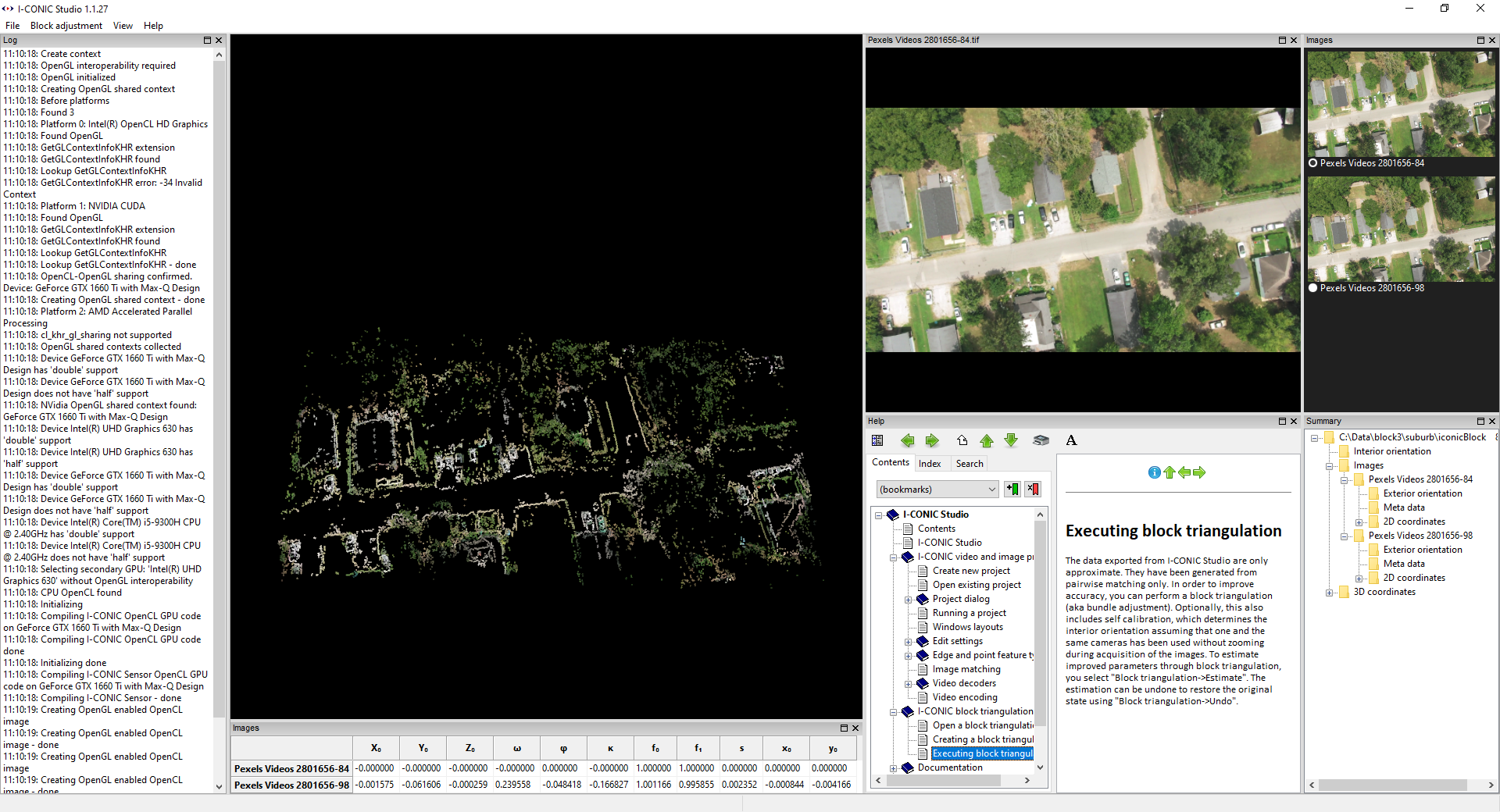
Figure 4.1: Block triangulation project.
You can open multiple ibt files in I-CONIC Studio. If more than one ibt file is opened, then notebook tabs will be shown below the menu to enable switching between the block triangulation projects. You can also use Ctrl+tab (next project) and Ctrl+Shift+Tab (previous project). If a video/image project has been opened, then there will be no File->Open menu entry, because you can not open more than one video project. However, you can still drag one or more ibt file(s) to the main frame to open block triangulation projects.
When running an I-CONIC video or image project you can save measurements in an I-CONIC Block Triangulation ( *.ibt ) file by choosing "Stereo->Save block..." or F8. In order to process data near real time, only every n:th frame is saved, where n is the offset between frames (see the project dialog). When running image folder projects, you probably save all frames. For video projects, you may select e.g. every 25:th frame or so.
In fact, one *.ibt file is saved for each pair of selected frames. These need to be merged into one coherent model before adjustment. This can be done by creating a new block adjustment.
An existing block can be opened as described here.
Note that if data were saved in CSV text format instead of default binary format, then they can not be opened in the I-CONIC block triangulation module.
Also note that saving in CSV text format is significantly slower than the default binary format.
*.ibt files are saved in zip format. They can be opened with any zip reader, such as 7-zip.
When data are saved in CSV format, you can extract the *.ibt zip file and then open each of the files in any text editor, such as Notepad++.
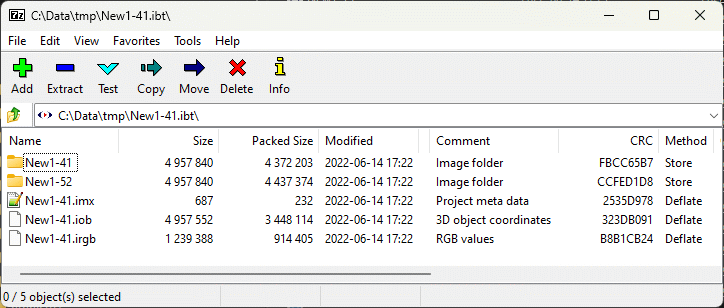
Figure 4.2: Block triangulation project. Example of content in an *.ibt file when opened with 7-zip.
The data saved are:
Block triangulation data
Open a block triangulation
Creating a block triangulation
Self calibration
Executing block triangulation