


Figure 3.2: I-CONIC Studio start screen
After opening I-CONIC Studio, you can drag a video file to the mainframe window to create a project.
Alternatively, after opening I-CONIC Studio, you create a new I-CONIC project by clicking the camera or video button or by selecting File->New or Ctrl+N. This opens a project dialog. At the top of the dialog you select if the project consists of video file(s) or a folder with image files.
For a video project you select the desired input video(s), video decoder and other settings.
For an image project, you select the folder with images. The images are currently traversed alphabetically. When the dialog is closed the project is created and started.
Read more about running a project here.
When the project is closed you are asked if you want to save the project to file.
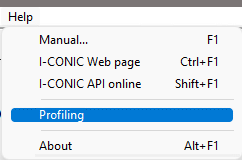
Figure 3.3: Selct Profiling to clock the performance of I-CONIC Studio
You can clock the performance by selecting Help->Profiling in the main frame menu, before you have created or opened a project. Note that all logging goes to a log file when profiling is turned on, so you will not see any messages, warnings or errors. The log file is automatically opened when I-CONIC Studio is closed. A summary of the clocked statistics is at the end of the log file.